Preparing Canva Files for Printing
The following steps ensure your design prints cleanly and professionally by preventing white edges, cut-off content, and color issues.
Adding the Bleed
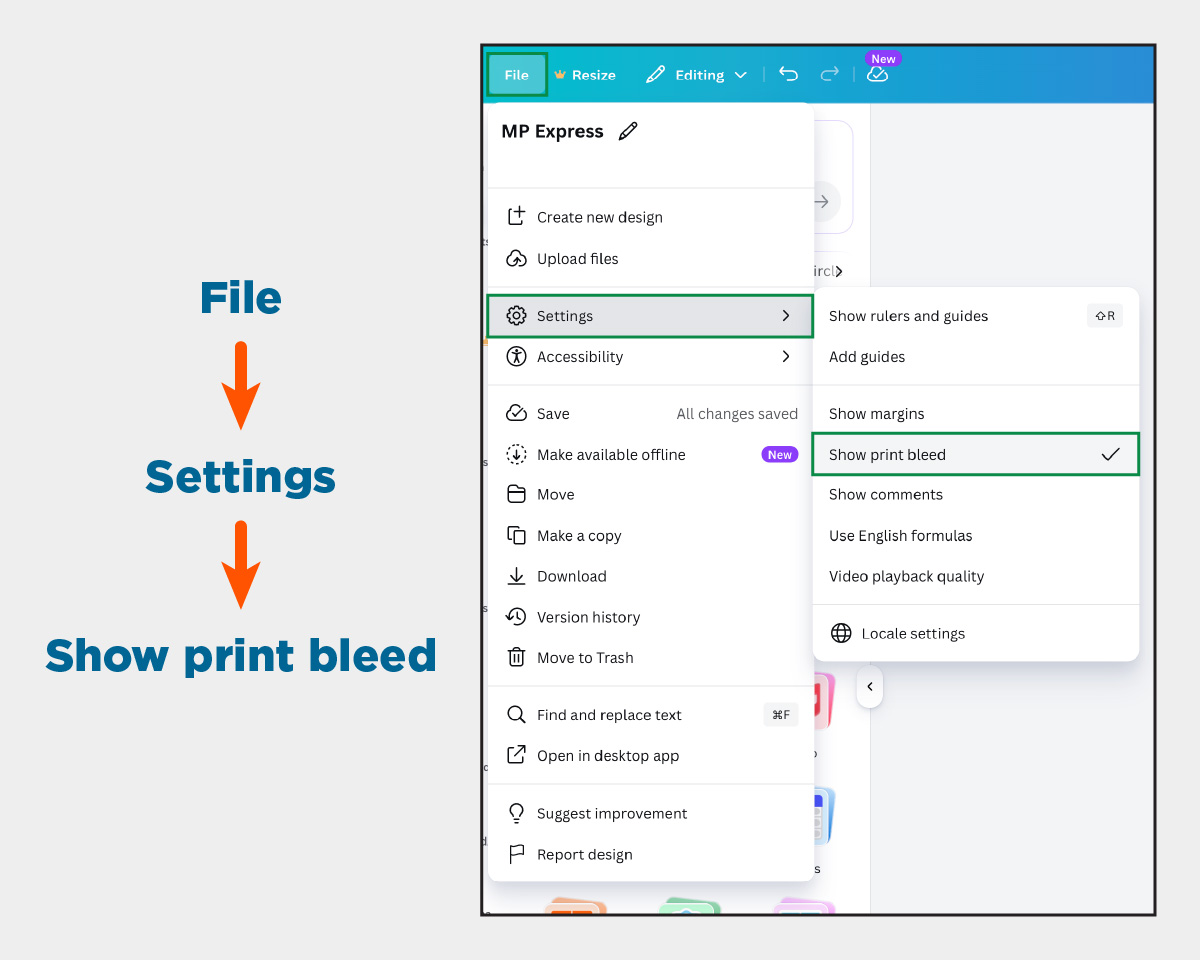
- Click "File" in the top left navigation bar in Canva.
- Click on "Settings" and then click on "Show print bleed."
- Extend background colors, graphics, or images all the way to the edge of the bleed area.
Using the Safe Zone Margins

- Click "File" in the top left navigation bar in Canva.
- Click on "Settings" and then click on "Show margins."
- Make sure all text and important graphics are at least 0.125"-0.1875" inches away from the edge of the page.
Exporting the File for Printing
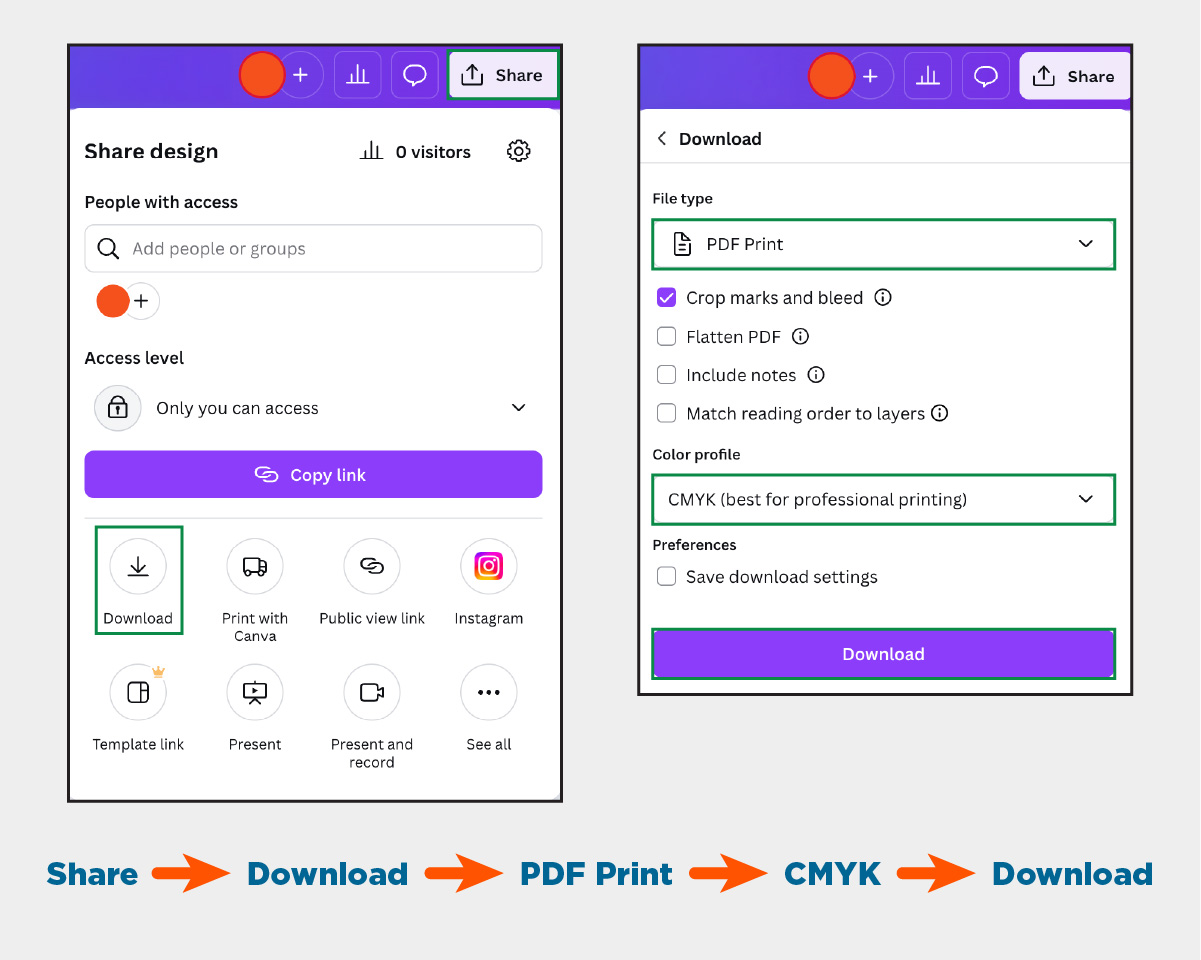
- Click "Share" in the top right navigation bar in Canva.
- Select the "Download" button.
- Under "File type" choose "PDF Print."
- Check the "Crop marks and bleed" option.
- Under "Color profile" choose "CMYK (best for professional printing).
- You can only select the CMYK profile if you subscribe to Canva Premium. If you do not have Canva Premium, keep the profile at RGB and we will convert it for you.
- Download the Canva file.
Ready to submit your order?